Network Diagnostics
Network Diagnostics is a built-in troubleshooting feature available within the InstaSafe User Portal (Console). It enables users to run real-time network performance tests directly from the dashboard to identify connectivity or performance issues affecting secure application access.
The feature provides visibility into download/upload speed, latency, jitter, load impact, and packet loss. Administrators can monitor and review user test results under Network Test Report. InstaSafe also supports GUI-based packet capture with export capability in standard PCAP format, enabling deeper analysis using external tools when required.
Key Capabilities
- Real-time network performance testing from the User Portal dashboard
- Metrics: Upload (Mbps), Download (Mbps), Latency (ms), Jitter (ms), Packet Loss (%)
- Historical visibility of previously executed network tests
- Admin-level monitoring via Logs & Reports → Network Test Report
- CSV export of network test reports
- GUI-based packet capture
- Export captured traffic in standard PCAP format
Running Network Test (User)
-
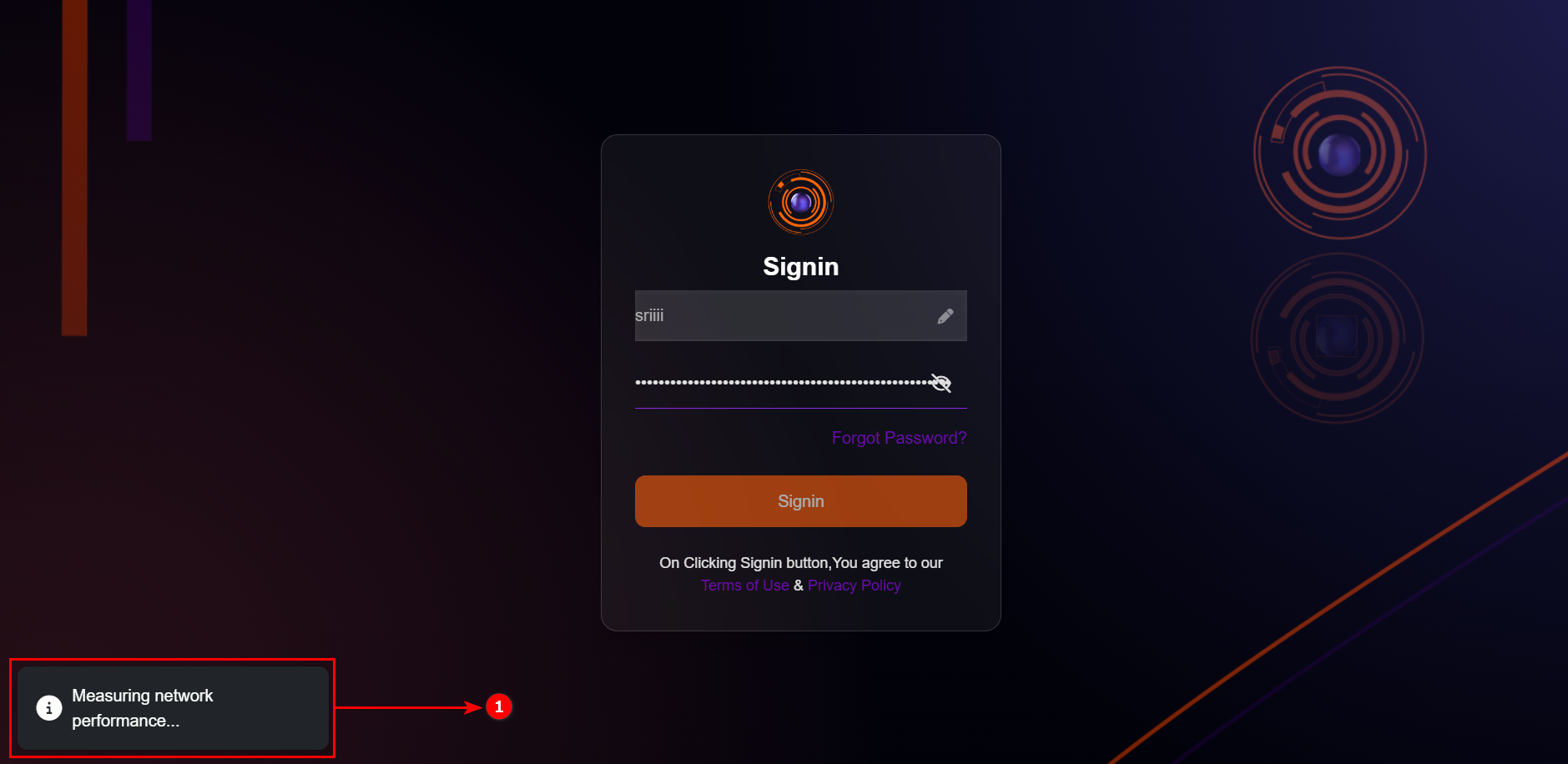
Log in to the i365 User Portal (Console); the “Measuring Network Performance” pop-up appears after successful login.
-
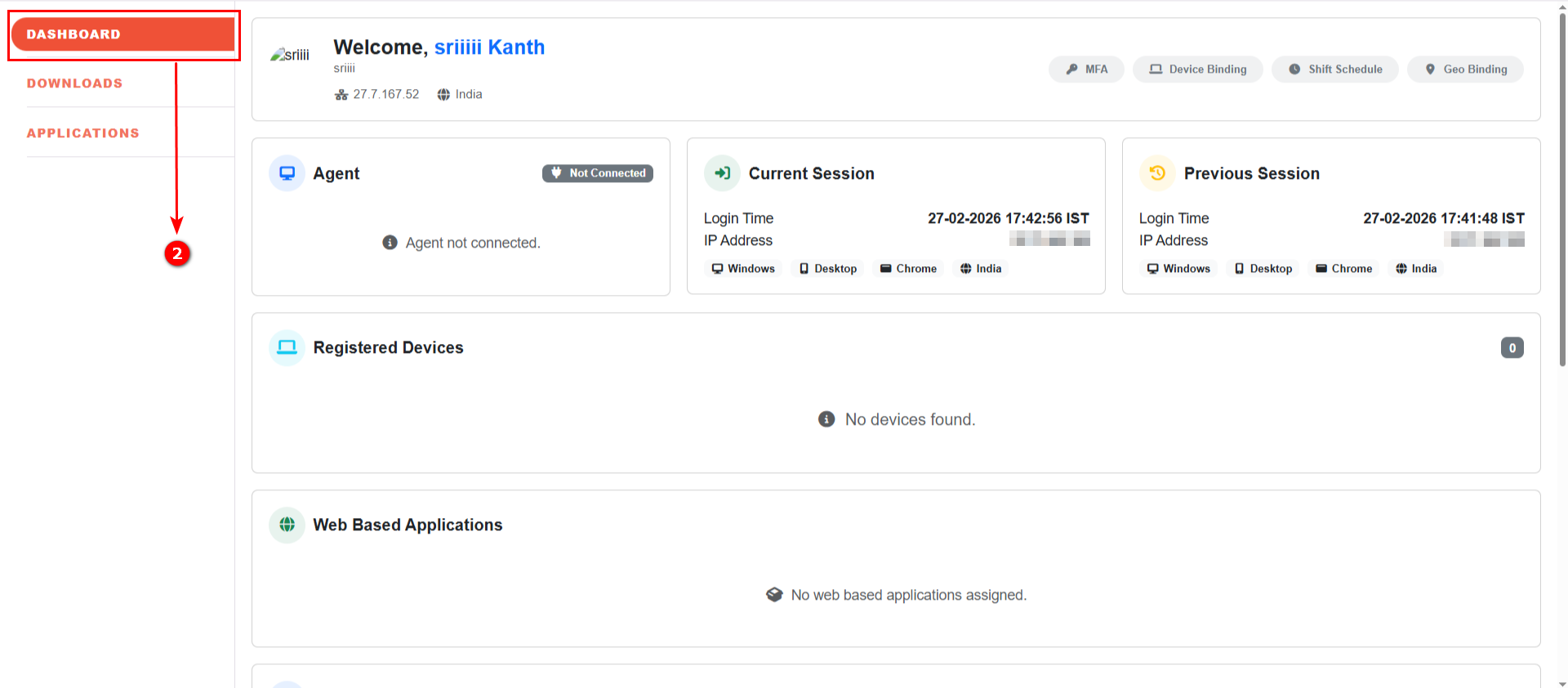
Navigate to the Dashboard.
-
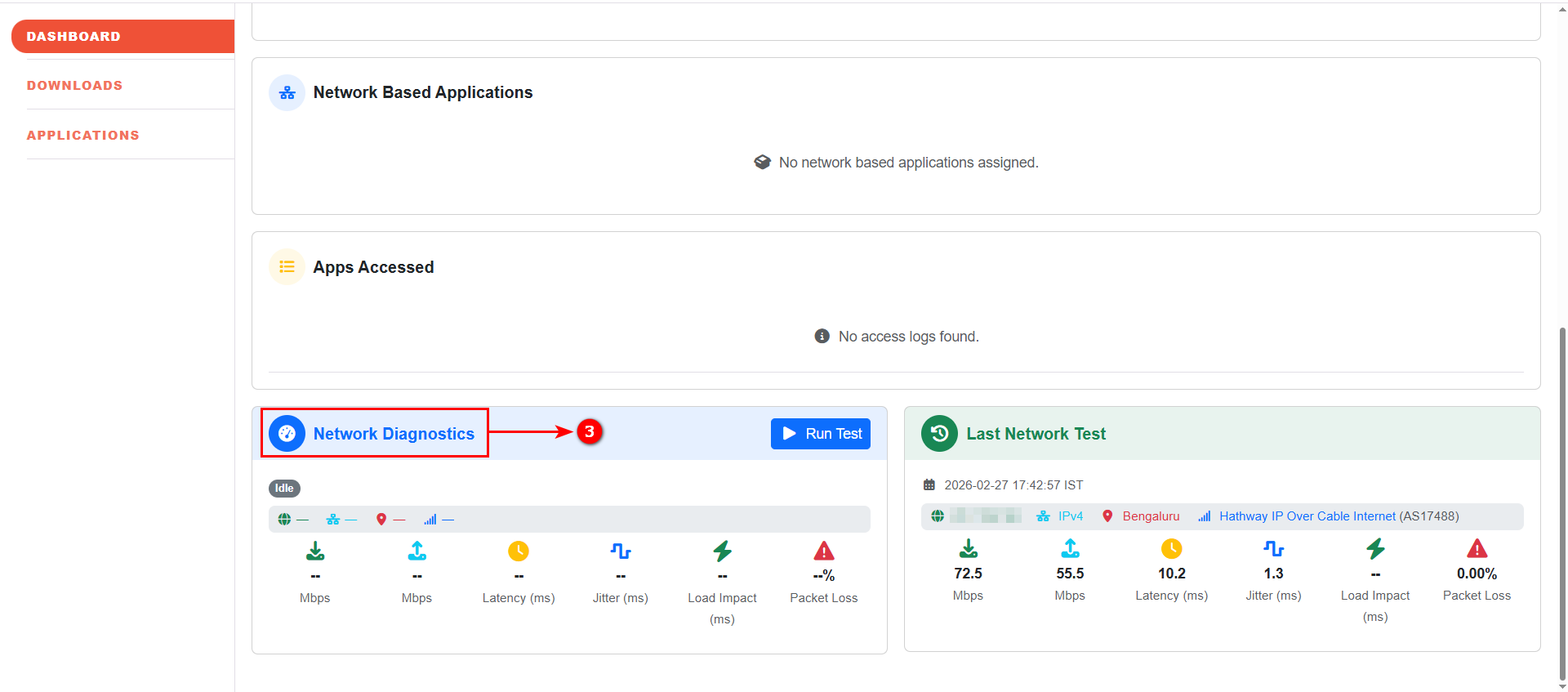
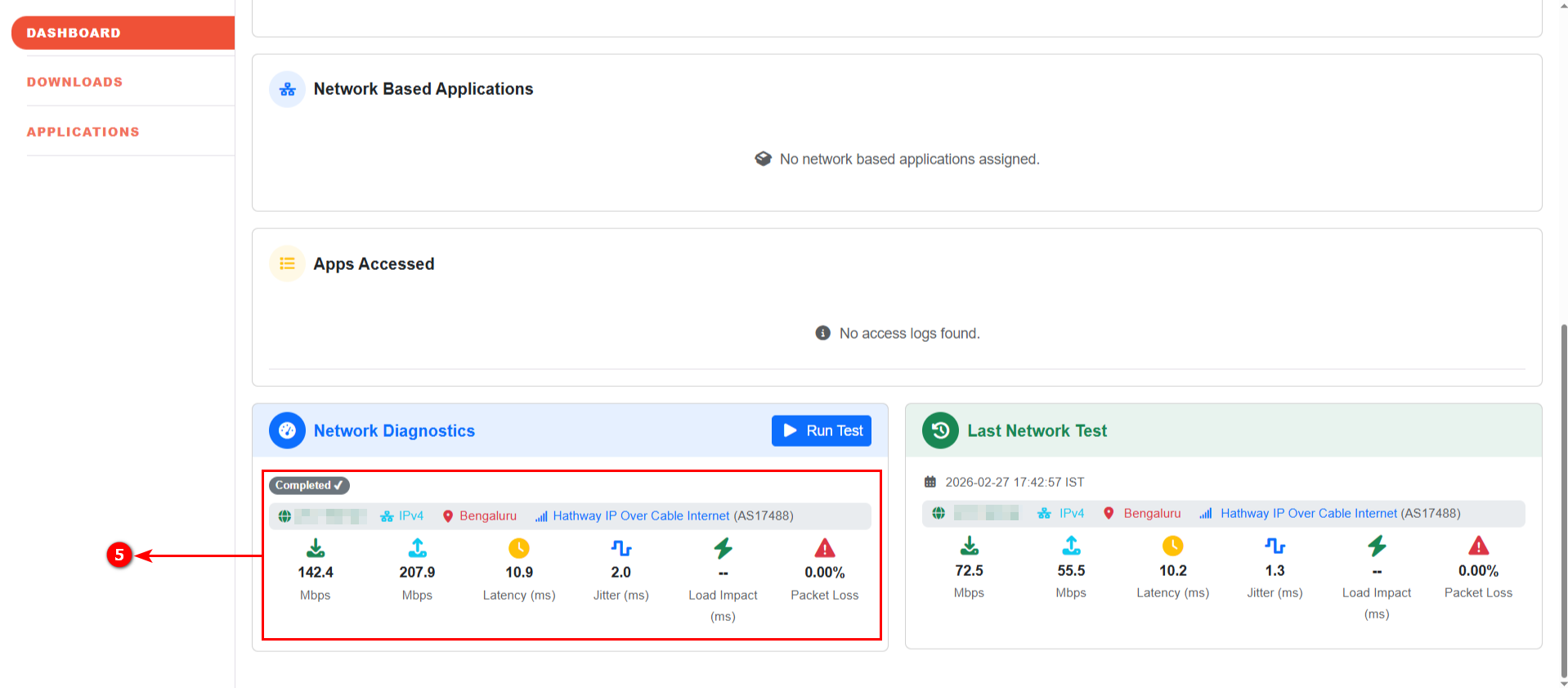
Locate the Network Diagnostics widget.
-
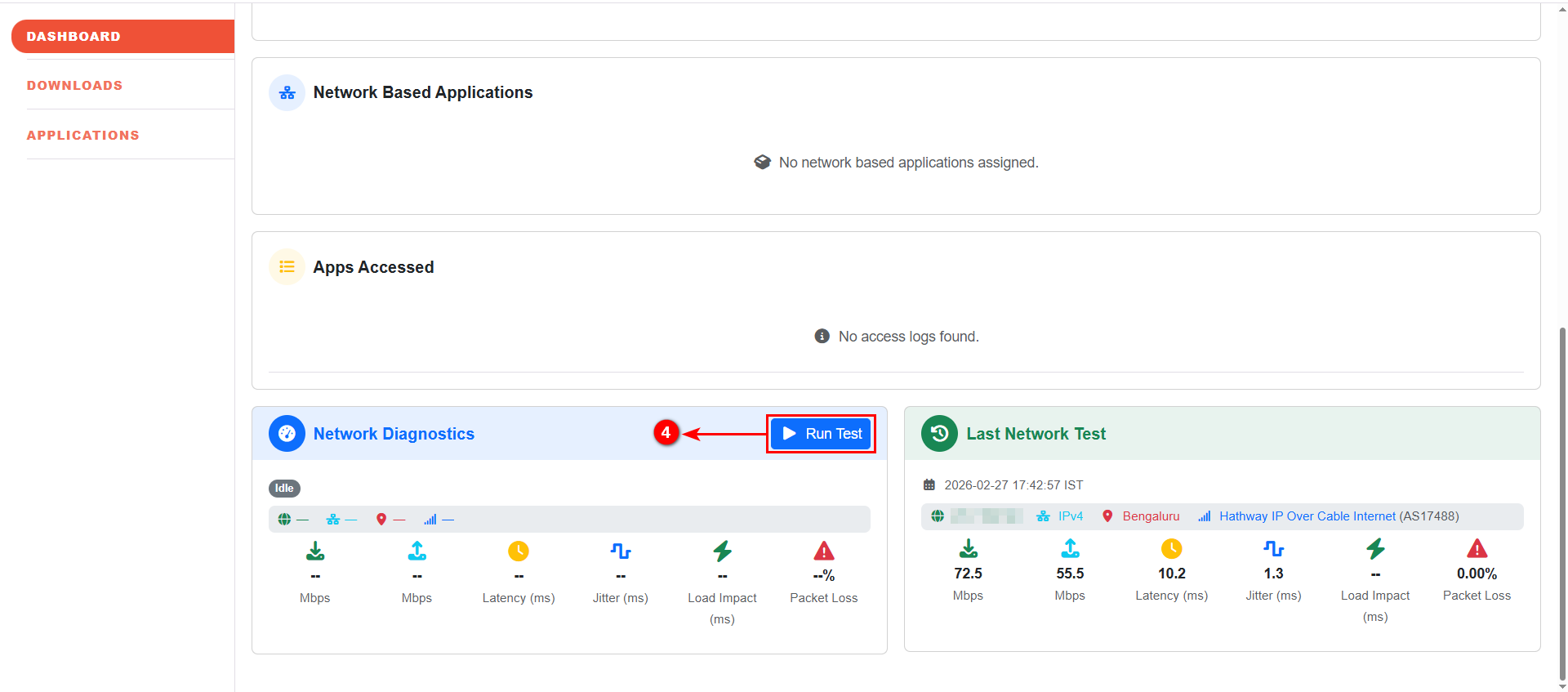
Click Run Test to initiate the network performance test.
-
Review the displayed metrics.
-
You can also view the Previous Network Test Result under "Last Network Test".
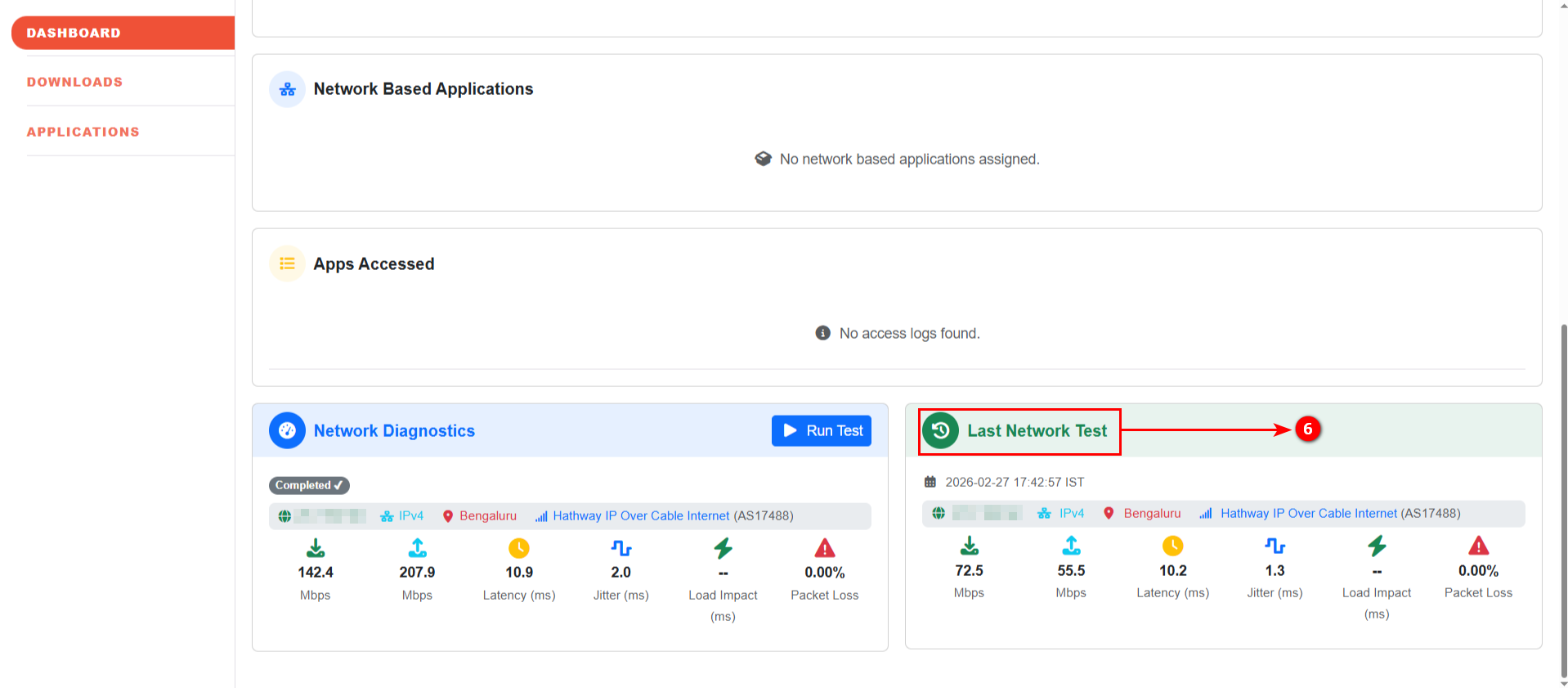
Note: Network test result reports can be viewed and exported only by Administrators from the Admin Console. This functionality is not available to end users.