Based on Device Binding
In a Zero Trust Architecture (ZTA), device binding refers to the practice of associating specific devices with their users and ensuring that only authorized devices can access resources. This will ensure that only trusted devices upon approval by the administrator, can access enterprise applications from the the agent.
Benefits of Device Binding in Zero Trust
Enhanced Security: Ensures that only devices that meet security standards can access resources, reducing the risk of breaches from compromised or non-compliant devices.
Granular Access Control: Provides more precise control over who can access what resources based on the device's security posture.
Compliance: Helps in meeting regulatory and organizational security requirements by ensuring devices are properly managed and secured.
Reduced Attack Surface: Limits potential vulnerabilities by enforcing strict device management and monitoring policies.
Enable device binding for your organization
The InstaSafe Zero Trust platform provides five device binding options:
-
Allow First Device
-
New Devices will require Admin Approval
-
Allow First Device. Subsequent Devices will require Admin Approval
-
Allow First Device from Desktop & Mobile. Subsequent Devices will require Admin Approval
-
New Devices will be Automatically Approved after 'n' days
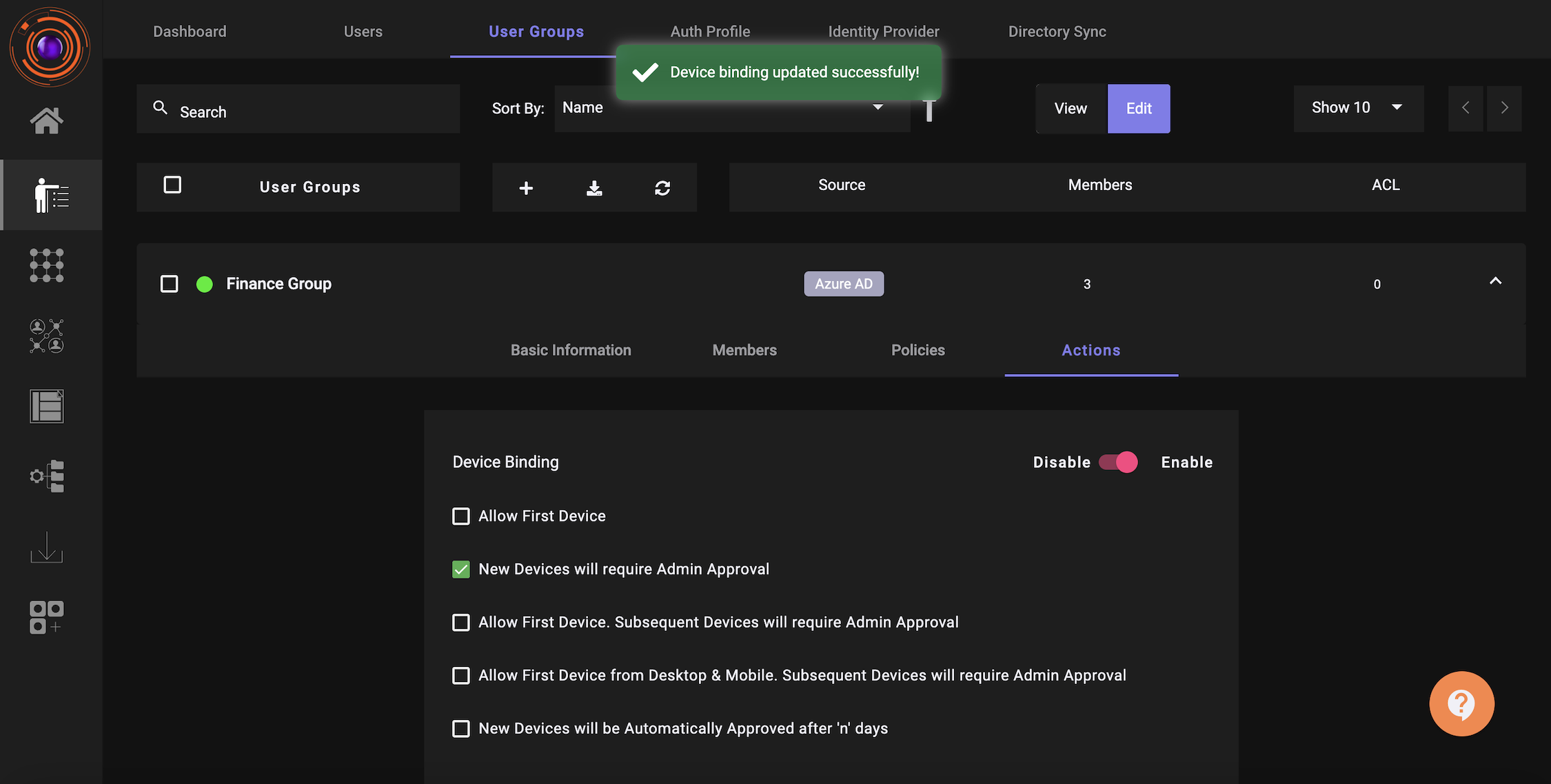
To enable device binding, InstaSafe ZTNA administrator will have to perform the below steps.
- Navigate to Identity Management.
- Click on User Groups.
- Select a “User Group” for which you want to enable device authorization.
- Click on “Edit”.
- Navigate to the “Actions” tab and drag the toggle to “Enable” for Device Binding.
- Click on the checkbox for the Device Authorization rule which you would like to be enforced.
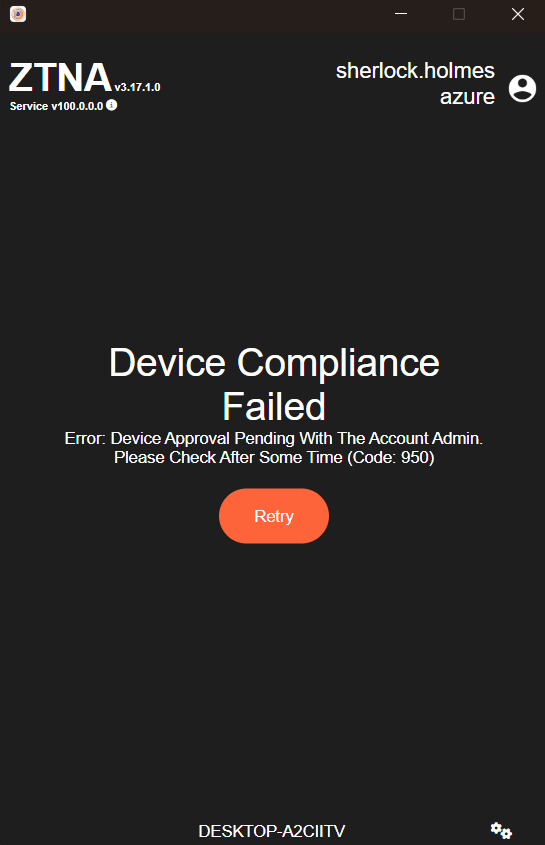
Once Device Binding is enabled for a User Group, depending on the device binding rule set, users when they try to access the ZTNA/the agent from their device will see a notification that their device is awaiting approval from Admin. Devices awaiting approval cannot access enterprise applications until they are aprroved by the Admin.
Below is the error which users receive when they try to connect to the ZTNA agent from a device which is not approved by the Admin.
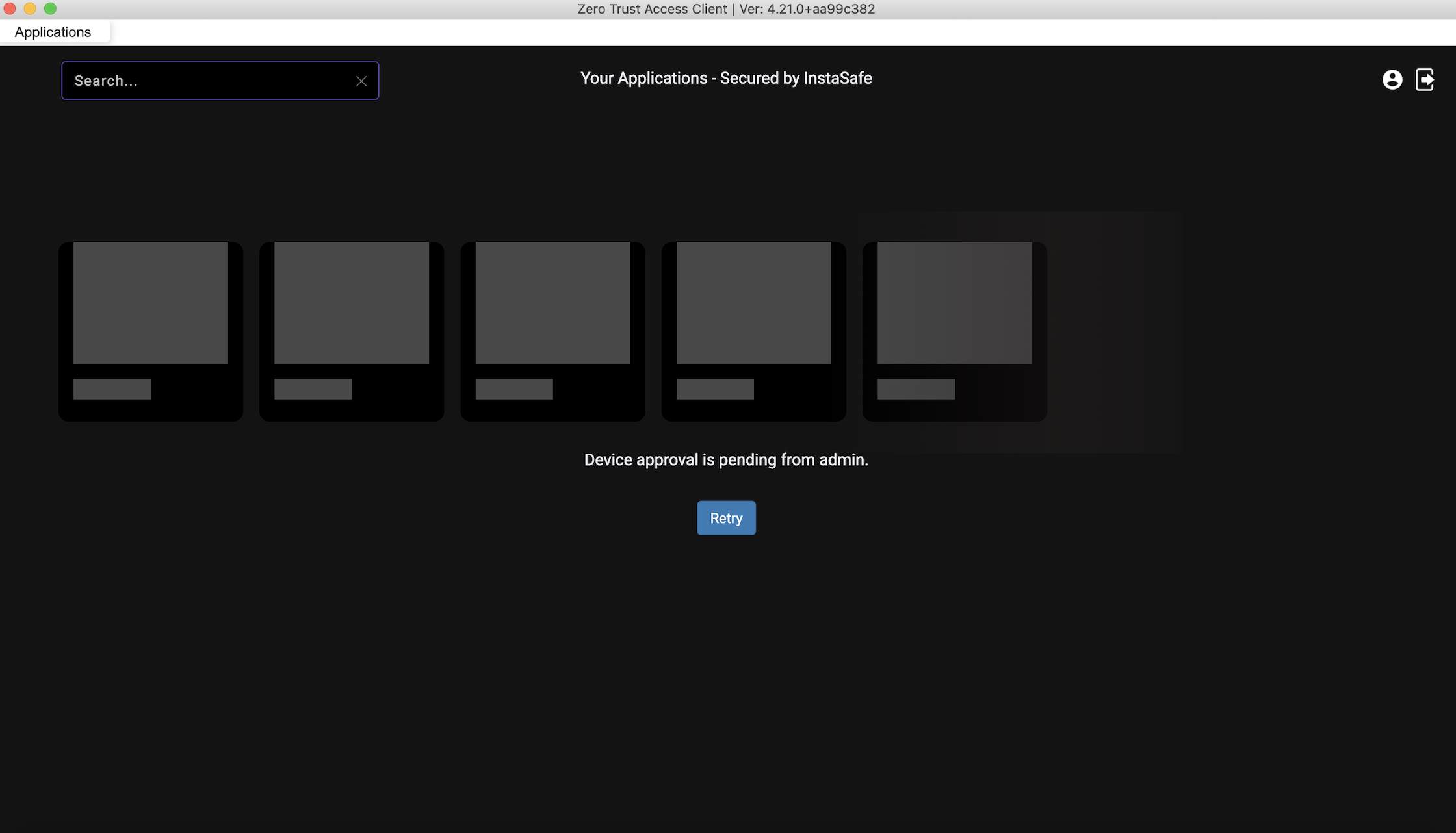
Below is the error which users receive when they try to connect to the the agent (Enterprise Secure Browser) from a device which is not approved by the Admin.
Authorize devices from the the console
Devices awaiting approval can be viewed in the the console by the organization Admin.
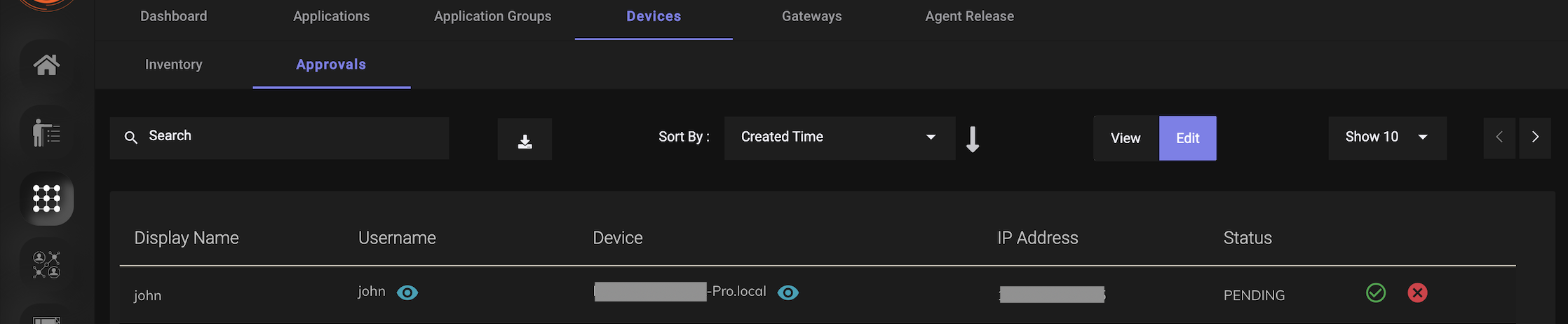
- Navigate to Perimeter Management.
- Click on “Devices” in the horizontal menu bar.
- Click on the “Approvals” tab.
- Click on Edit.
- Select “Approve” or “Reject” for the devices awaiting approval.
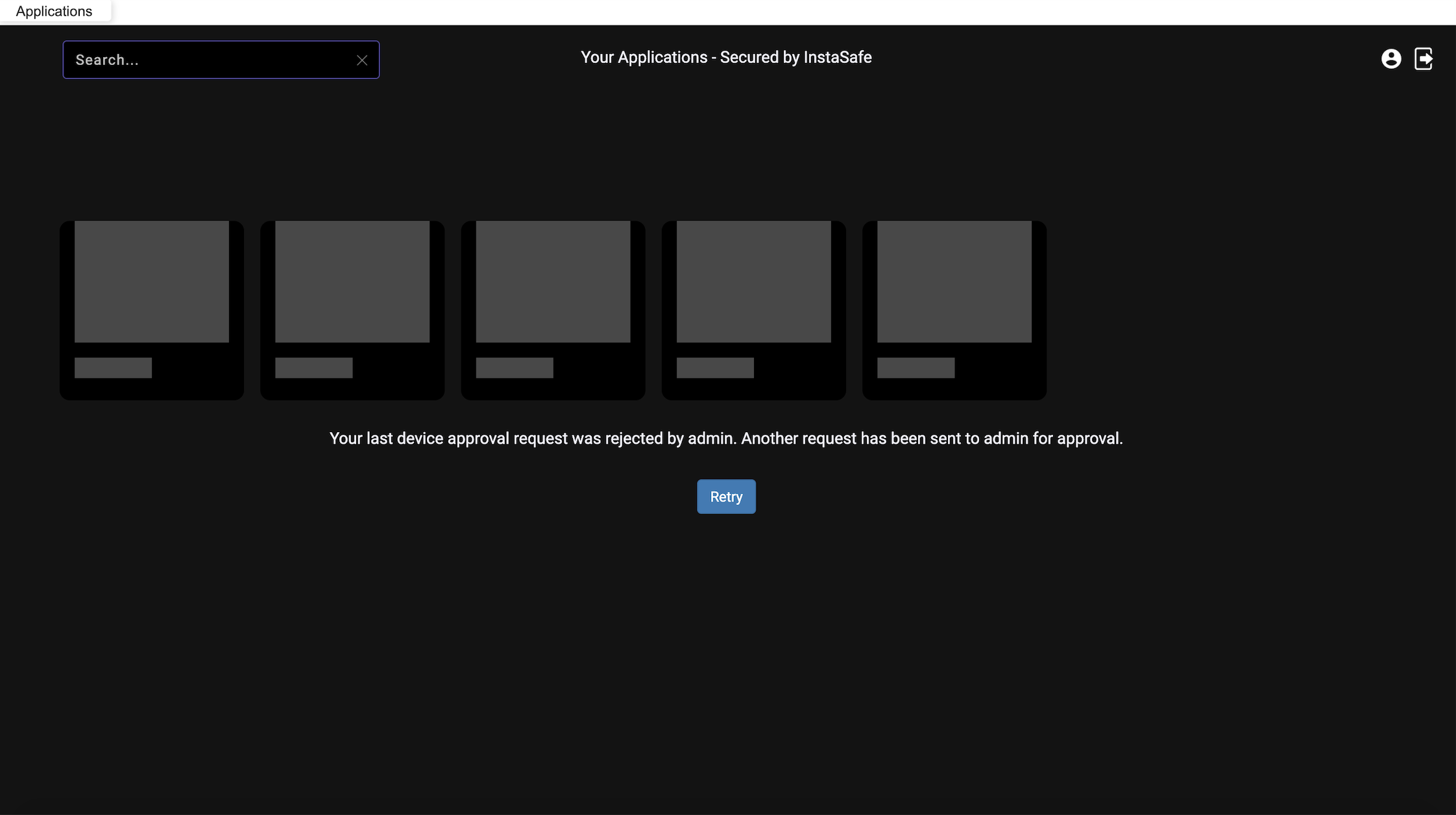
If the device is approved by the admin then users can access the applications from the the agent. If the device is rejected by the Admin then users will get a message that their request was rejected by the Admin when they login to the the agent.
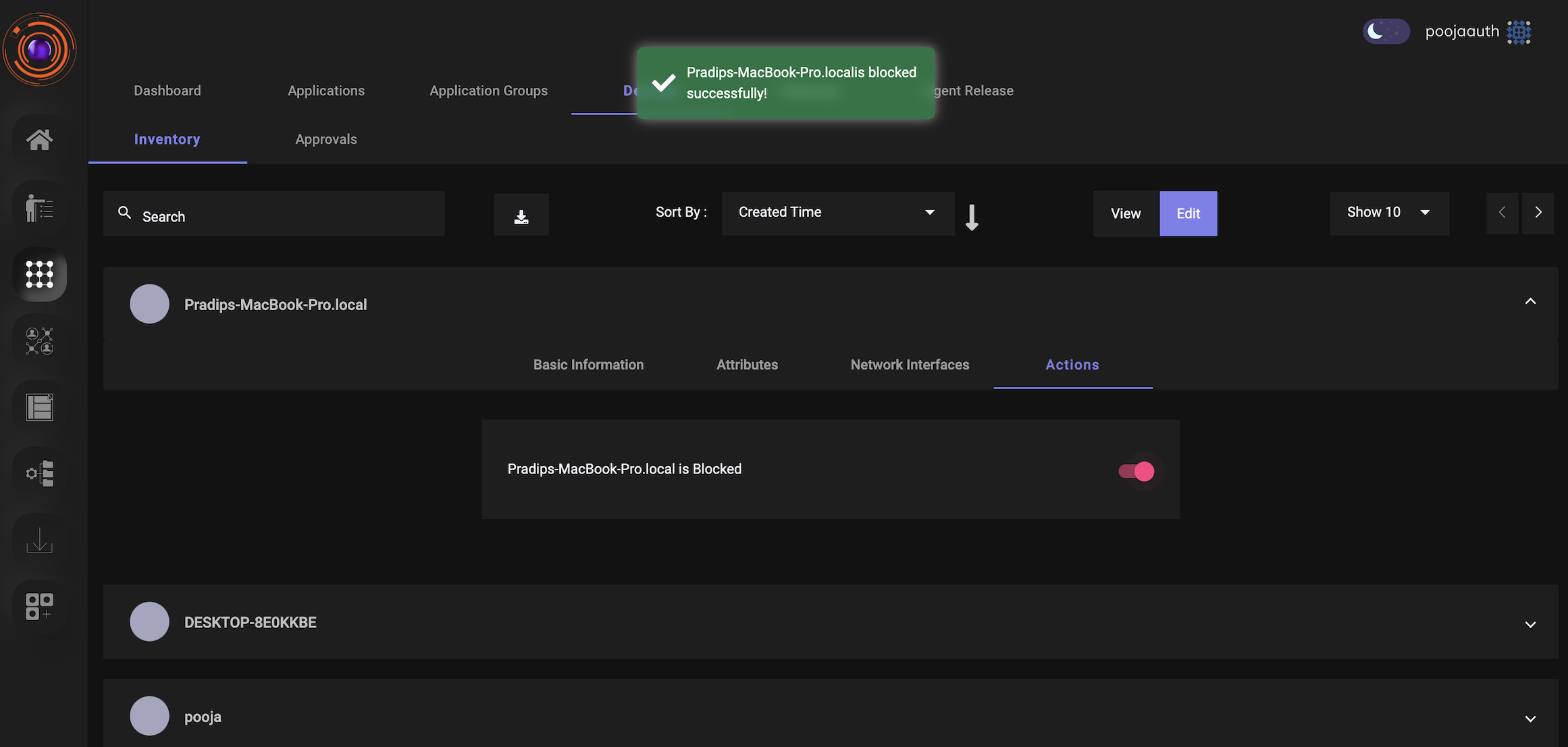
The details of all the devices which try to login to the the agent are captured and are available to the Admin for review in the console. Admin have the option to block any device.
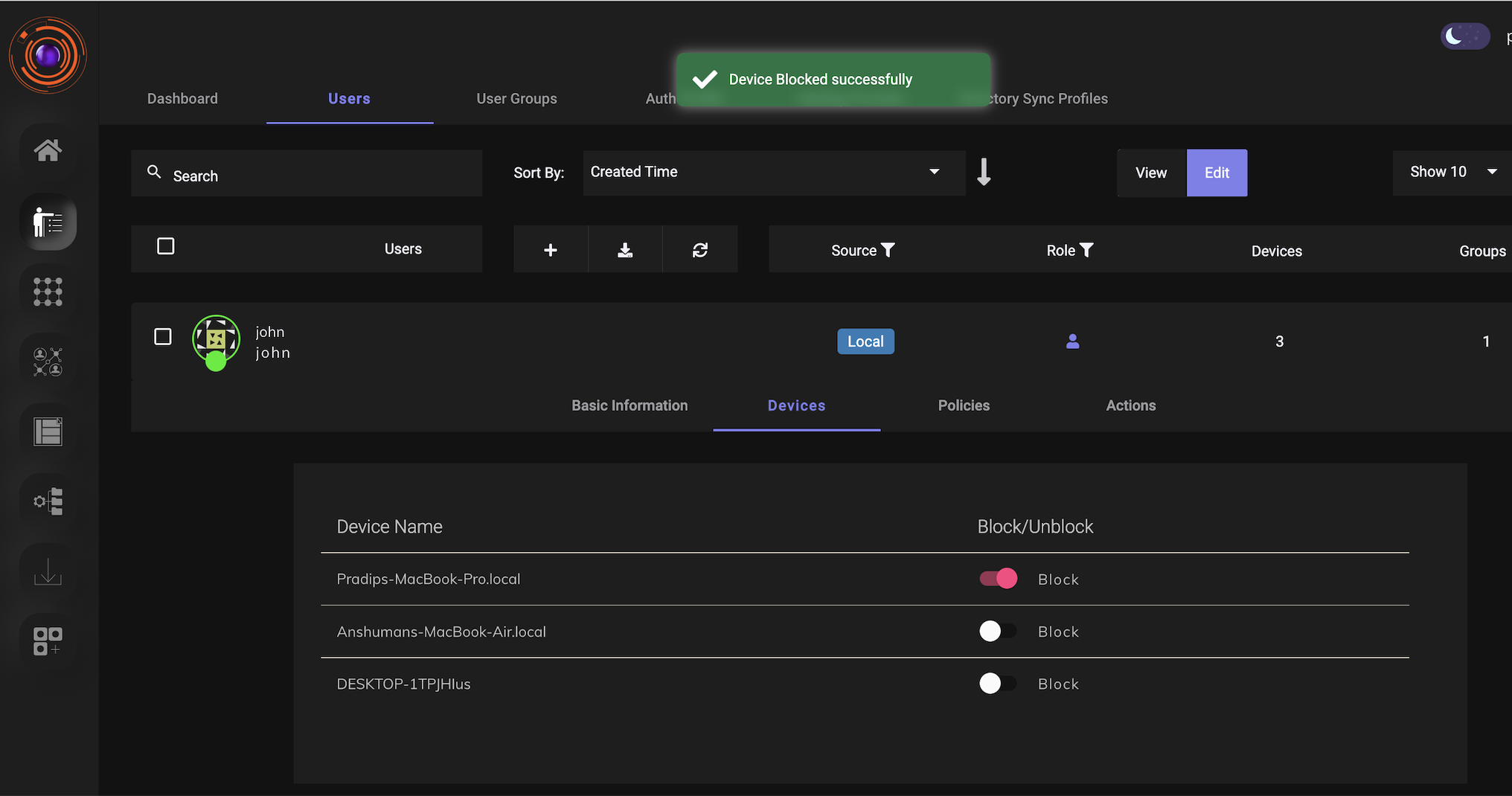
Admins can also view the details of all the devices which are used by each user to login to the the agent. Admin can block or unblock any device for any particular user.
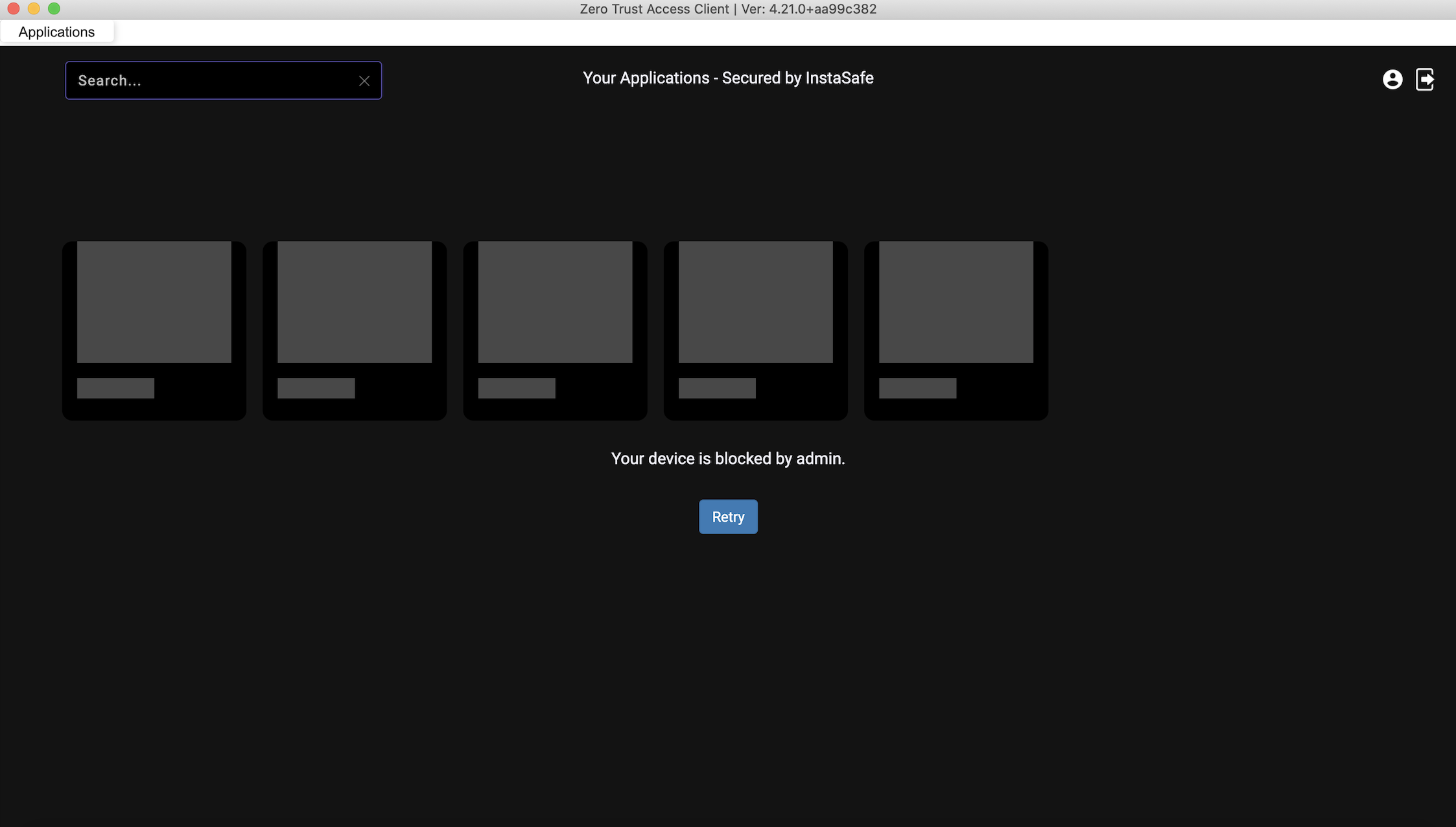
Once the device is blocked, users will get a notification that their device is blocked by admin when they try to login to the agent.
Binding a device for browser users
Device binding is not limited to users running the agent. With Device Compliance for Web Access enabled, the endpoint of a browser session is identified on the device itself by InstaCheck, a small component the user installs once, so a browser session presents a device the platform can recognise and bind in the same way an agent session does. A session whose endpoint does not answer is held at a device-status gate rather than reaching the applications. See Contextual Access Control: Device and Browser Identity.
Telling the administrator about a new device
The administrator is emailed when a user presents a device that is not bound to them, which is what a new device is until it is approved. The alert is configured as a risk profile: select the Device Bind Failure type, optionally Device Check Failure alongside it, and set the action to Email Admin. The device itself waits in the register as Pending-Approval at the same time. See Device Binding for Browser Users, and New-Device Alerts and Email Alerts and Scheduled Reports.