Account Lockout, Idle Timeout and Forced Logout
Three separate controls govern how long a session lasts and what happens when access is abused. They are configured in different places, so they are set out here together.
Idle timeout and session timeout
Both are set on the User Settings page, under the User Settings menu.
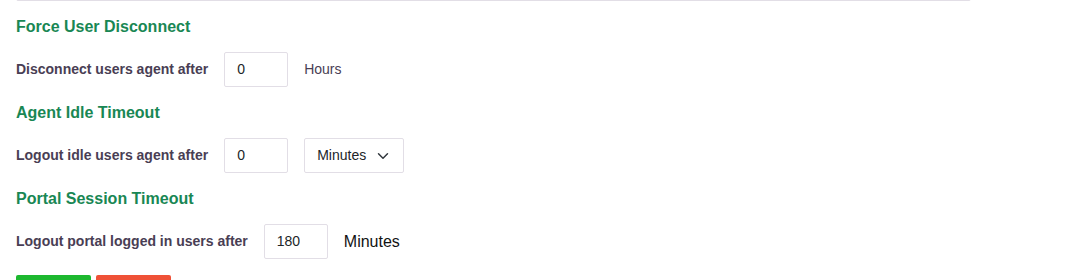
| Setting | What it does |
|---|---|
| Agent Idle Timeout - Logout idle users agent after | Logs out a user whose agent has been idle for the set period. Takes a number plus Minutes or Hours. |
| Portal Session Timeout - Logout portal logged in users after | Ends a signed-in portal session after the set number of minutes, idle or not. |
| Force User Disconnect - Disconnect users agent after | Disconnects the agent after the set number of hours, regardless of activity. This is the forced logout. |
A value of 0 leaves that control off. In the deployment shown, the portal session ends
after 180 minutes.
The portal also shows the user a countdown to their own session expiry in the header, so a session never ends without warning.
Forced logout by an administrator
Besides the timed disconnect above, an administrator can end a session on demand. On Recent Active Users under Audit, every user connected through the agent is listed, and the administrator can log a user out remotely from the console - the control intended for use when something looks wrong. See Audit Logs.
Account lockout
Repeated failed sign-in attempts lock the account out. The user is told so at the sign-in page and cannot try again until the block lifts:
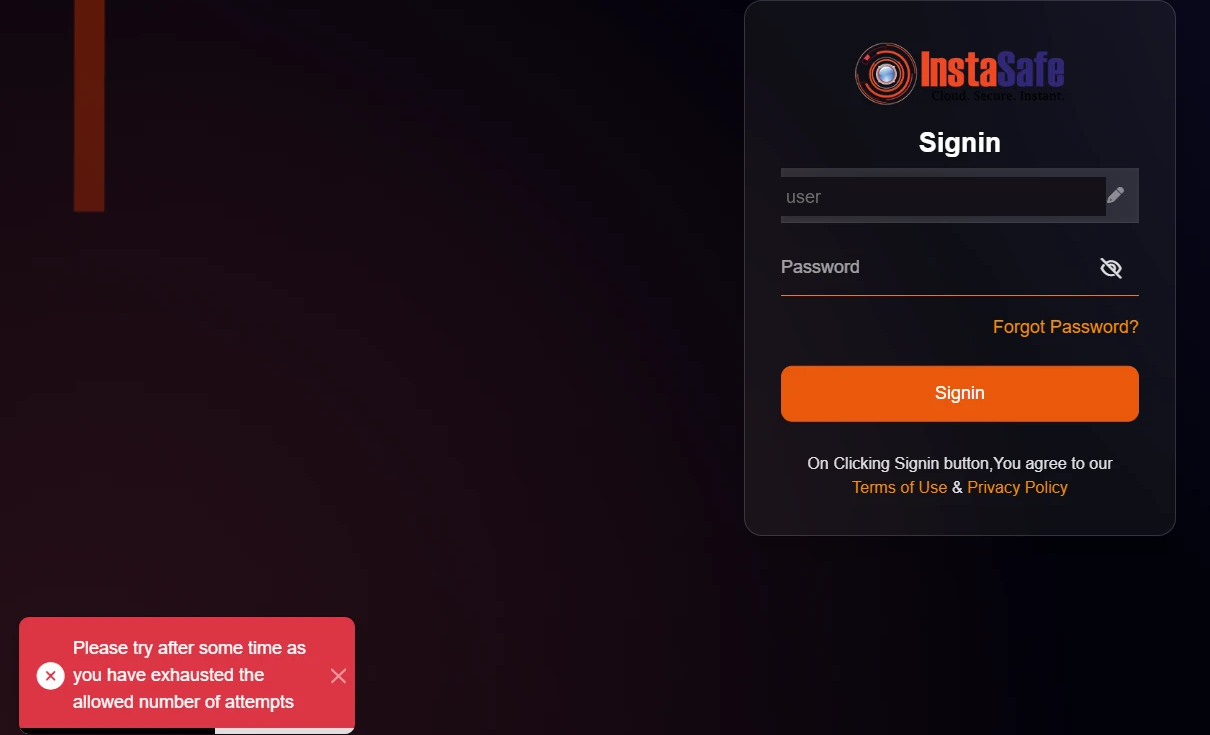
Please try after some time as you have exhausted the allowed number of attempts
The block is recorded on the Blocked Users page under Users & Groups, against both the account and the address the attempts came from:

| Column | What it holds |
|---|---|
| IP | The address the attempts came from |
| Username | The account that was being attempted |
| Blocked At | When the block started |
| Blocked Until | When it lifts by itself |
A block therefore expires on its own - in the case above it was applied at 11:35:12 and lifted at 11:39:45, a little under five minutes later - and an administrator can release one early by selecting it and clicking Unblock. The list exports to CSV.
Setting the threshold and the block period
How many failed attempts are allowed before a block, and how long that block lasts, are set per tenant in the platform configuration. They are not fields in the console, so they are not changed by an administrator day to day; they are set for the deployment and apply to every account in it. To have either value changed for your tenant, raise it with InstaSafe support - see Support Ticket.
Policy response to failed attempts
Lockout is not the only answer available to failed authentication. A risk profile can act on Login Failure and MFA Failure directly, and the action is chosen by the administrator:
| Action | Effect on a user tripping the profile |
|---|---|
| Deny Access | The attempt is refused |
| Suspend User | The account is suspended |
| Disconnect User | The session is ended |
| Email Admin | An alert is sent |
So the response to repeated failures is configurable, per group of users, through the profile that applies to them. See Email Alerts and Scheduled Reports for how risk profiles are built.
Lockout, suspension and disconnection all appear in the audit record - see Audit Logs for the Authentication Logs and Events reports.
Disconnecting an inactive agent
Separately from the portal's idle timeout, the agent itself can be disconnected when a user is not actively reaching applications. The inactivity rule is defined by how much data has passed through the agent in a given interval: if less than the configured volume has moved, the agent is disconnected. It applies to Windows, Linux and macOS devices.
The rule is created under Access Policies → EndPoint Policies and applied to the users or groups it should cover. The previous version of this page, with the step-by-step form, is kept at Inactivity Timeout (previous version).