Report Subscriptions
Report Subscriptions
The Report Subscriptions feature allows administrators to automatically generate and email selected reports at scheduled intervals.
It enables regular monitoring, compliance reporting, and operational visibility without manual effort.
Step-by-Step Configuration
Step 1: Access Report Subscriptions
-
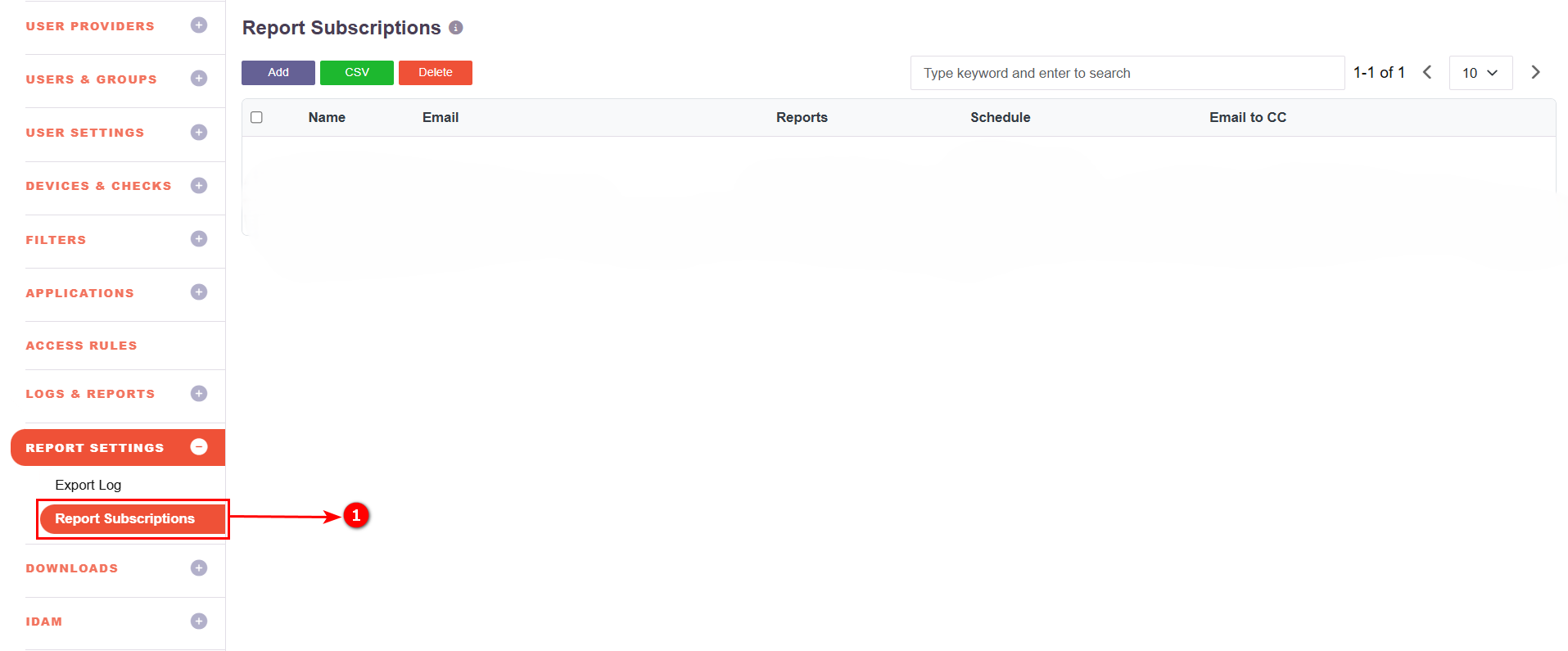
Log in to the portal with Admin credentials and navigate to Report Settings → Report Subscriptions
Step 2: Add New Subscription
-
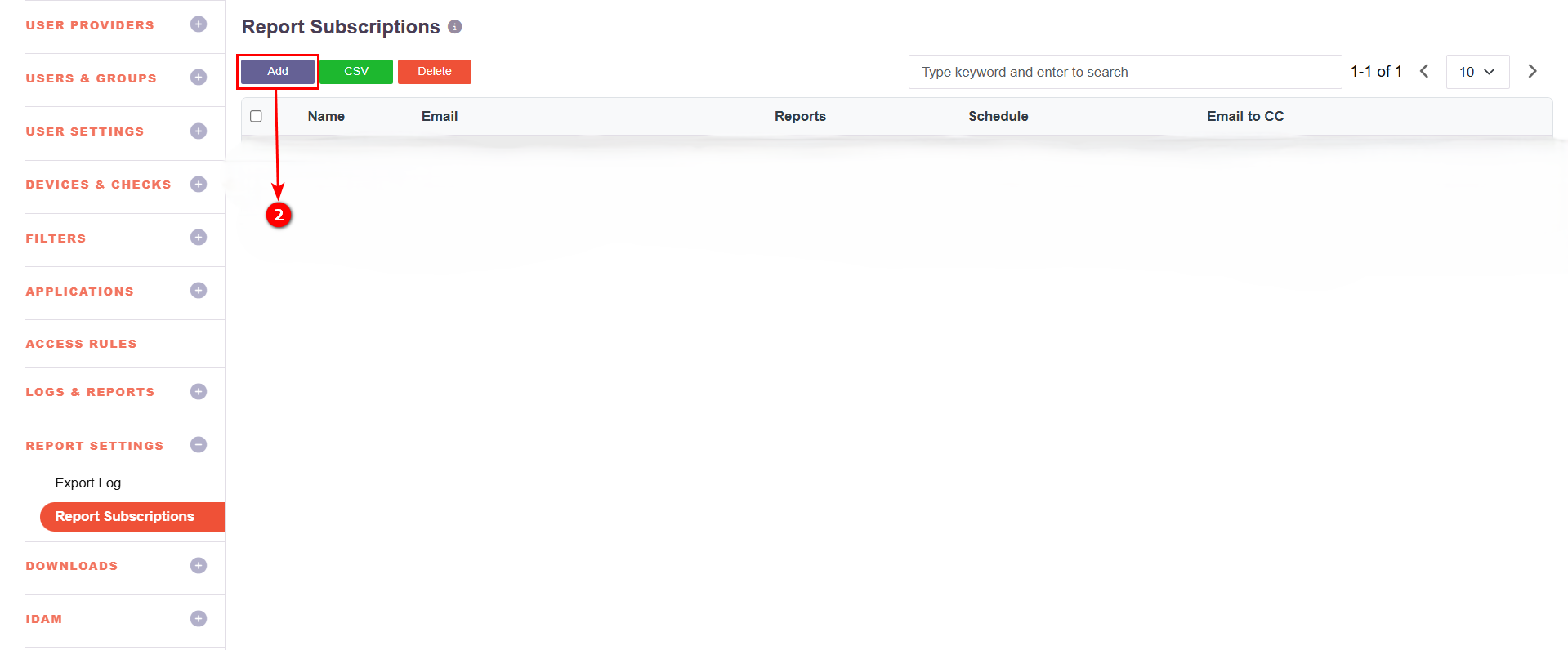
Click Add
Step 3: Provide Subscription Name
-
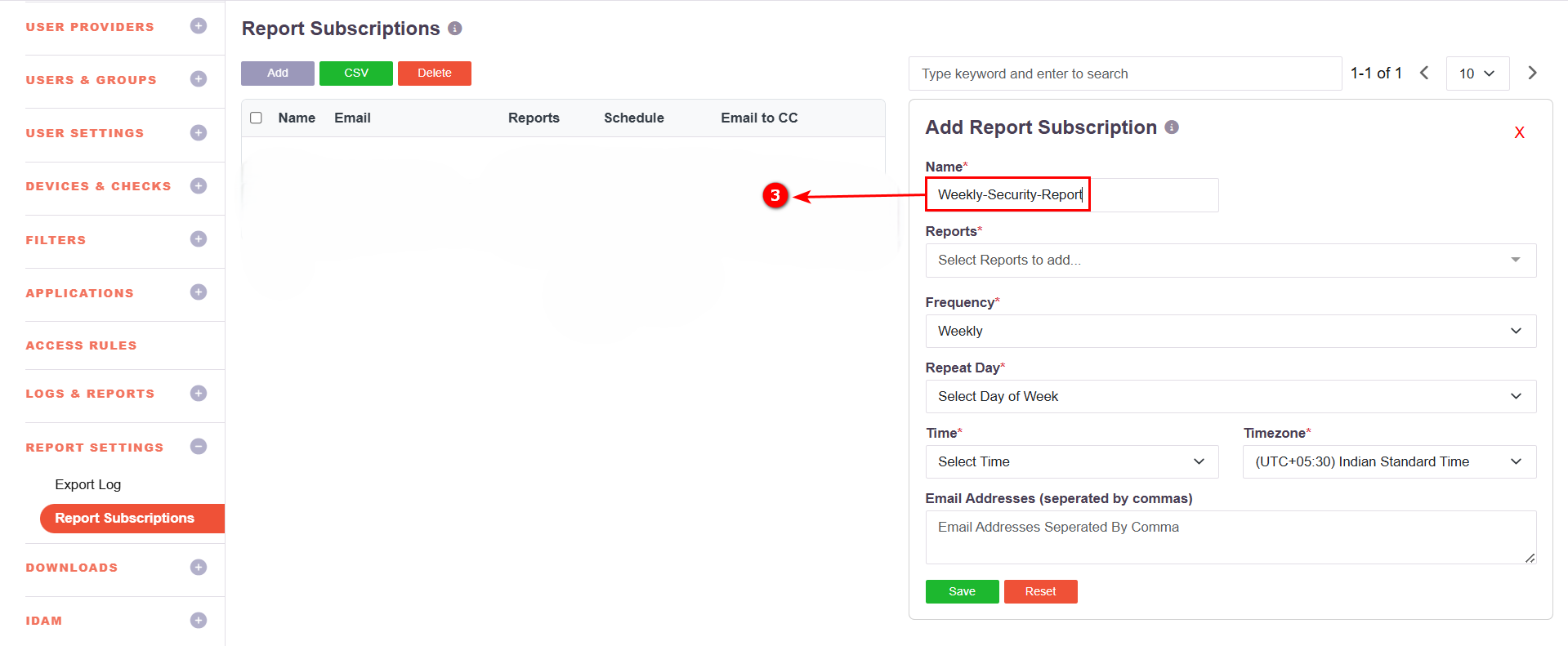
Enter a unique name for the subscription.
Step 4: Select Reports
- Select one or more reports to include.
Available report categories:
- Live Users / Live Gateways
- Data Usage / Time Usage
- Login Failures / Session Log / Event Log
- Application Access Log / Portal Access Log
- User & Group Reports
- Device & Controller Reports
-
Access Policies & Authentication Reports
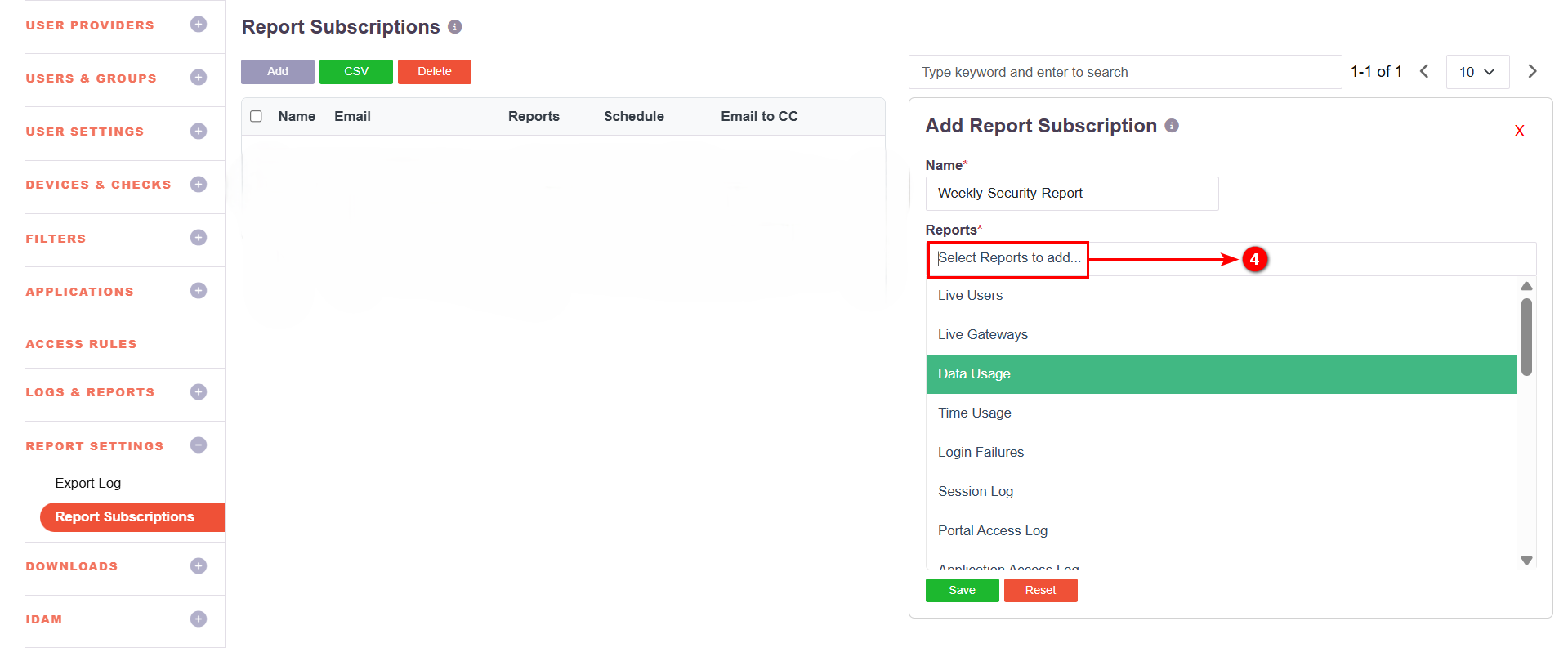
Note: Multiple reports can be selected.
Step 5: Choose Frequency
-
Choose how often the report should be generated:
Once / Daily / Weekly / Monthly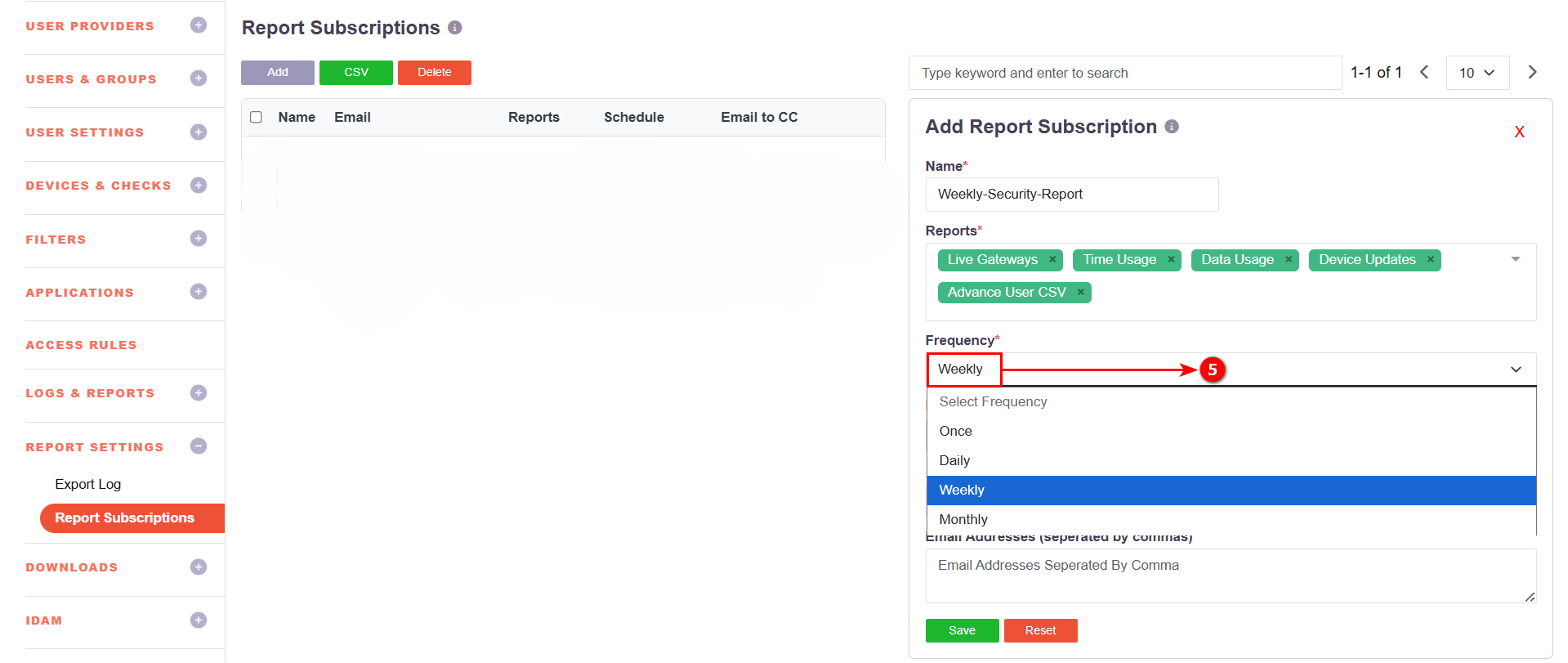
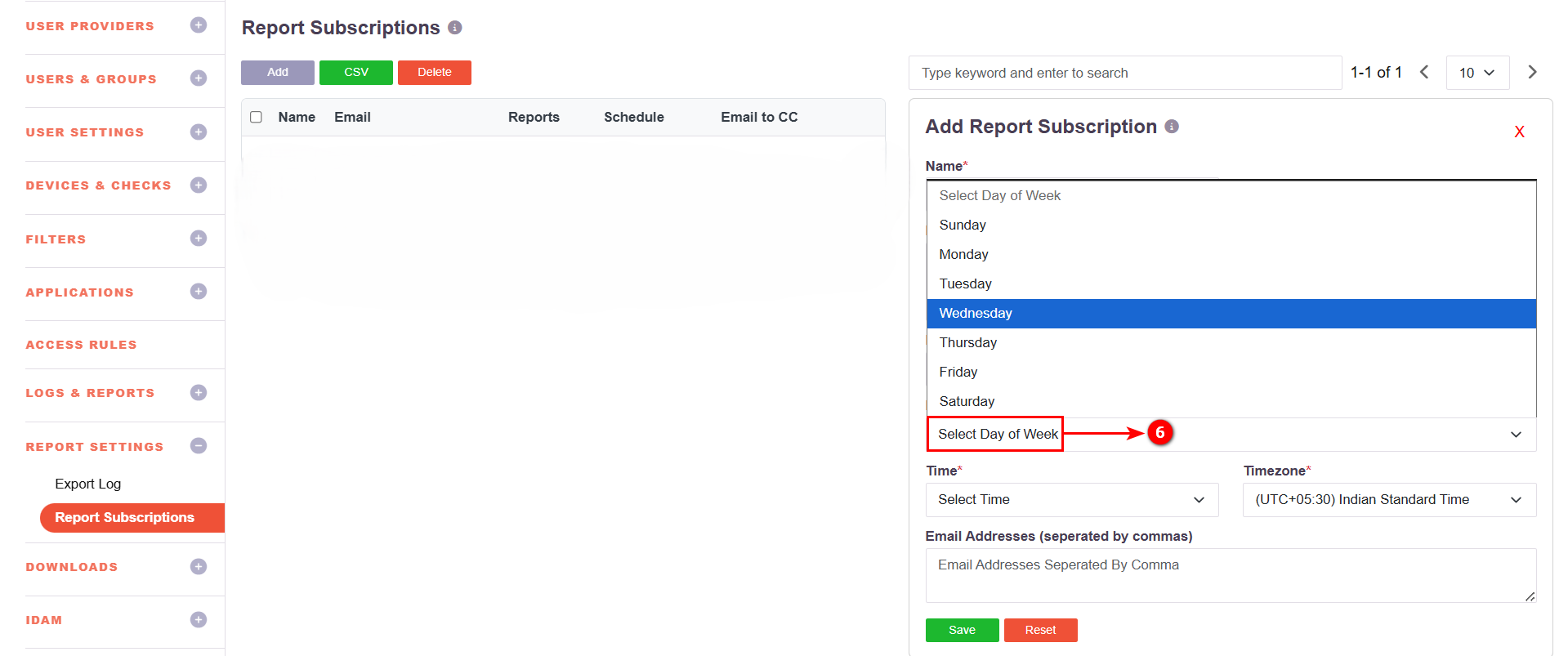
Step 6: Configure Repeat Day
-
If Weekly or Monthly is selected, specify the Repeat Day.
Step 7: Set Report Time
-
Select the time for report generation.
Time Range: 12 AM to 11 PM (1-hour intervals)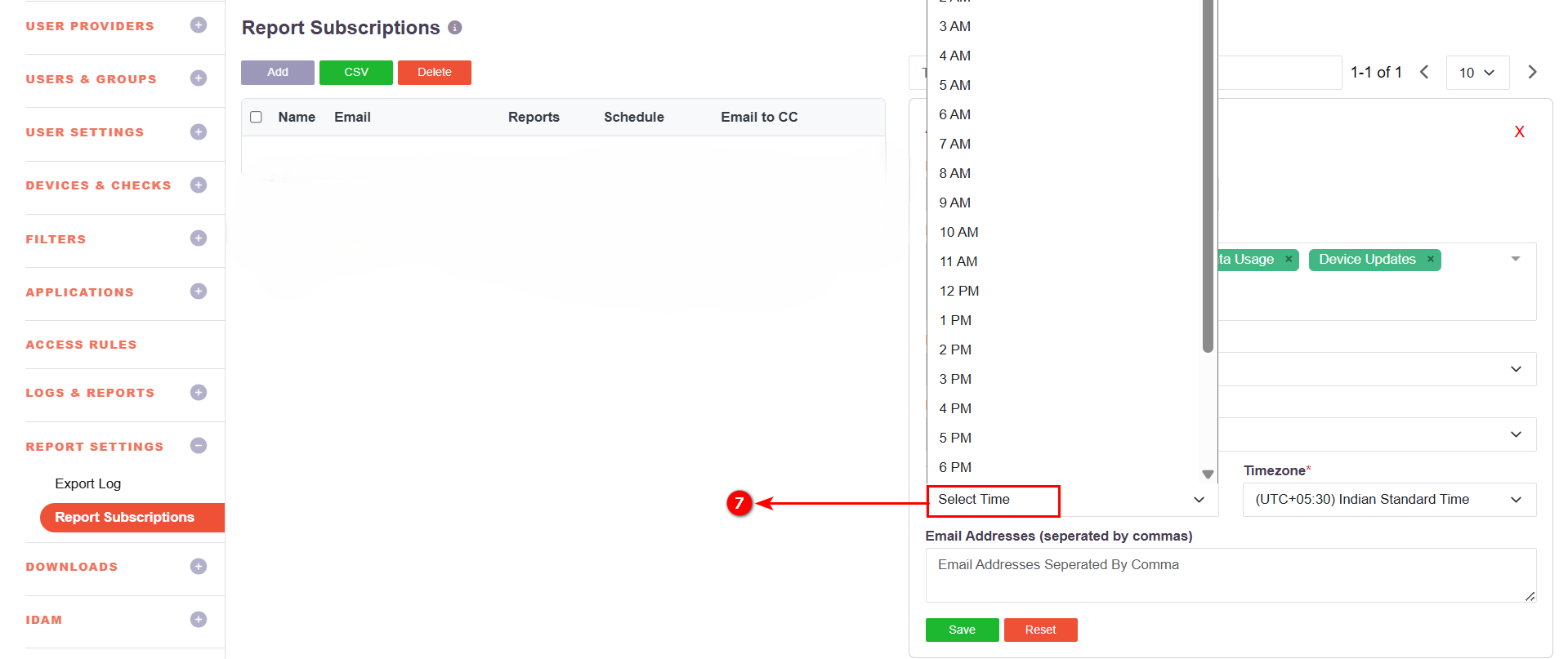
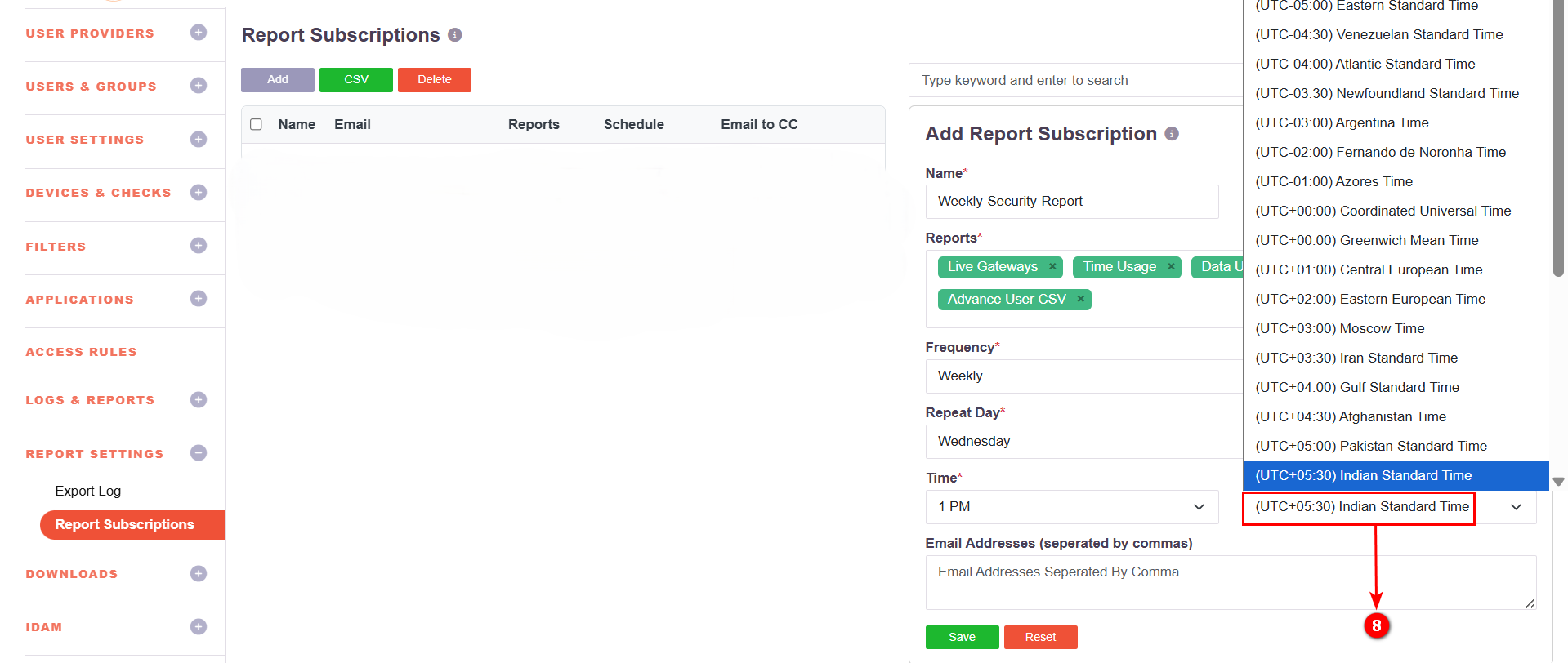
Step 8: Select Timezone
-
Select the applicable timezone.
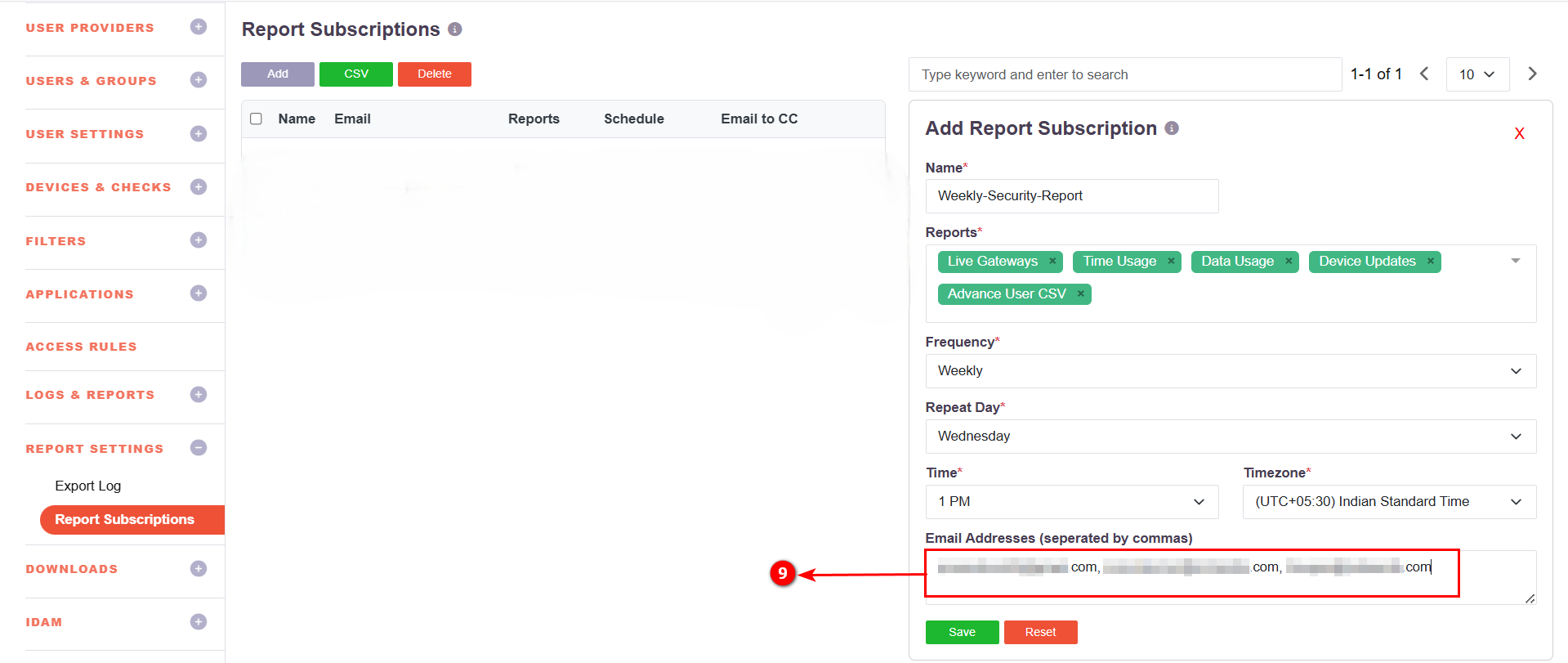
Step 9: Add Email Recipients
-
Enter recipient email addresses separated by commas.
Step 10: Save Subscription
-
Click Save to activate the report schedule.
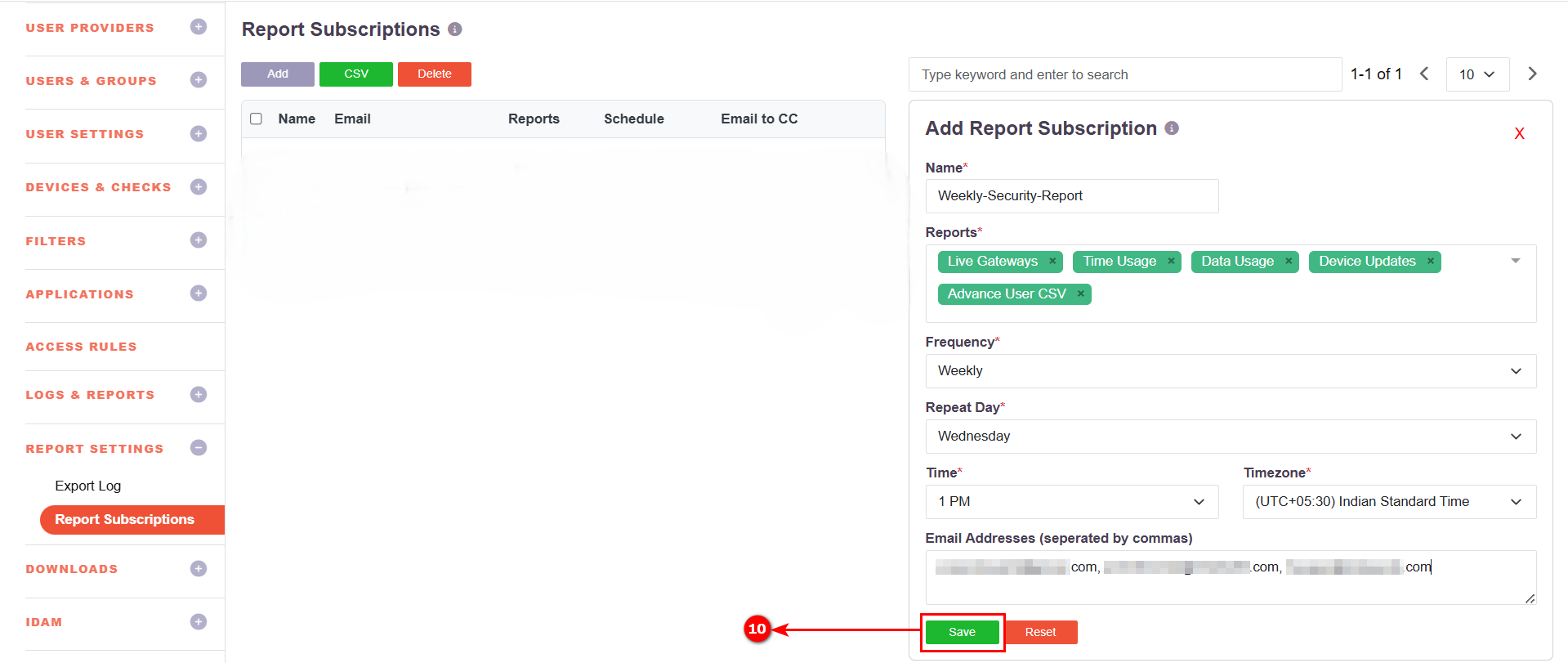
The subscription will be listed in the Report Subscriptions table.
Use Delete to remove a subscription or CSV to export the list.