Device Binding for Browser Users, and New-Device Alerts
Device binding ties a user to the devices they are allowed to use. A device the platform has not seen before does not get in on the strength of a correct password - it is held, or refused, or reported, depending on how the organisation has set it.
Enabling binding
Binding is an action on a user group. In Users & Groups → User Groups, open a group and the actions are listed:
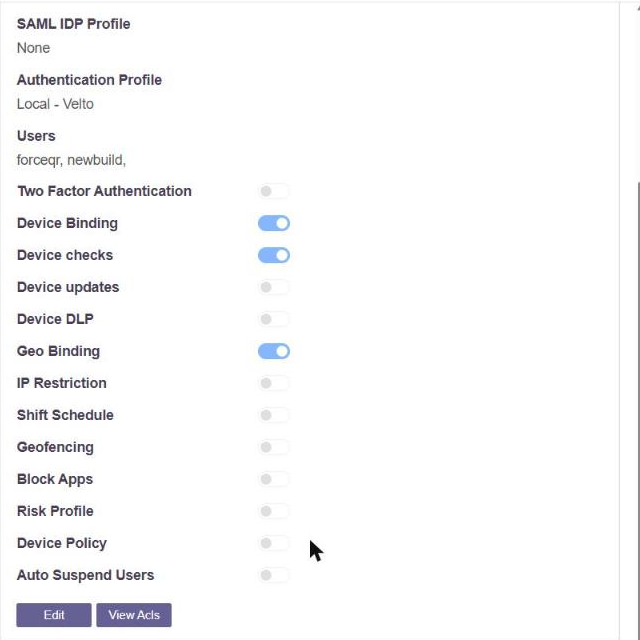
Device Binding turns the control on for the users in that group. Device checks and Geo Binding sit beside it, so an organisation can require a bound device, an acceptable endpoint and a permitted location together, for the group that needs all three.
The binding rules
Five rules are available, so the control can be as strict or as forgiving as the organisation needs:
| Rule | Behaviour |
|---|---|
| Allow First Device | The first device the user signs in from is bound; it is the only one |
| New Devices will require Admin Approval | Every device waits for the administrator |
| Allow First Device. Subsequent Devices will require Admin Approval | The first is automatic, every later one waits |
| Allow First Device from Desktop & Mobile. Subsequent Devices will require Admin Approval | A desktop and a phone are automatic, every later one waits |
| New Devices will be Automatically Approved after n days | A device is admitted after a stated delay |
The steps to set the rule are in Device Binding.
The device register
Devices & Checks → Devices is the register. Every device that has presented itself is listed with its operating system, hardware identifiers and the date it was first seen, and carries a status:
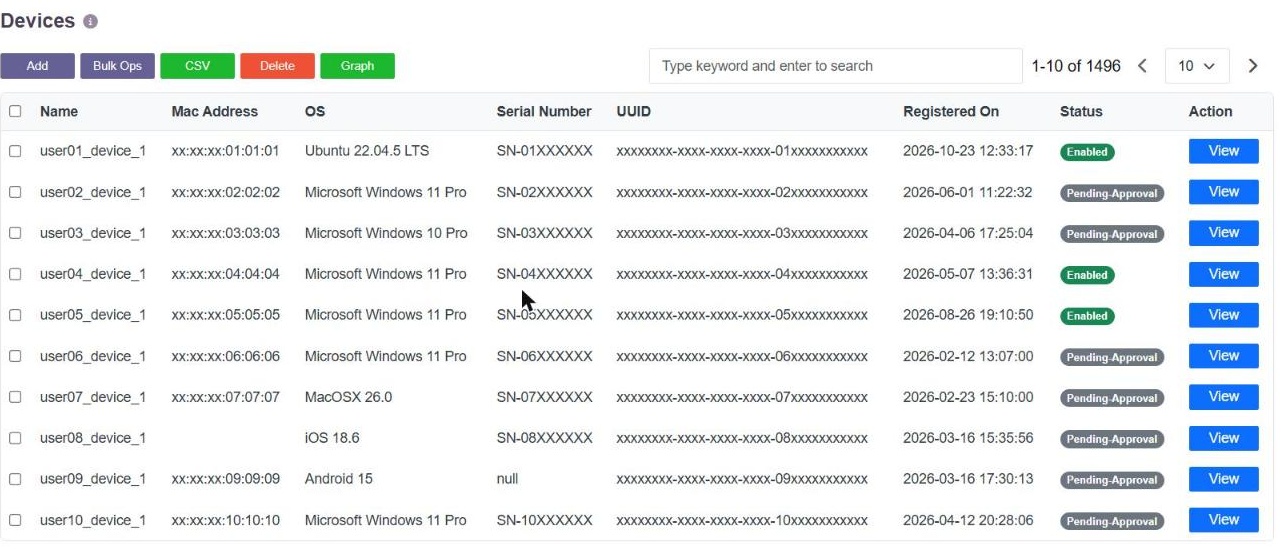
Pending-Approval is a device that has arrived and is waiting. Enabled is a device that is bound and may be used. The administrator approves, rejects or blocks from this page, and can block a single device for a single user without touching the rest.
Browser users
Binding is not limited to users running the access agent. Where Device Compliance for Web Access is enabled, a browser session is identified on the endpoint by InstaCheck, which runs locally alongside the browser and is a small download rather than the full agent. A browser user whose endpoint does not answer is stopped at a device-status gate and offered that download:
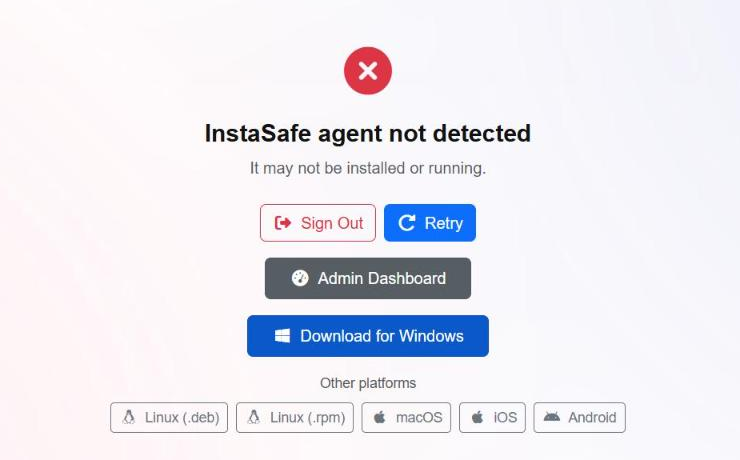
Because the endpoint answers for itself, a browser session presents a device the platform can recognise and bind, in the same way an agent session does. See Identifying the Browser and the Device for what is checked.
Being told about a new device
The platform emails the administrator through risk profiles, which pair a set of events with an action. The relevant event is Device Bind Failure - a user signing in from a device that is not bound to them, which is what a new device is until it is approved.
- Go to User Settings → Risk Profiles and click Add.
- Name the profile.
- In Types, select Device Bind Failure. Device Check Failure can be added in the same profile, so a non-compliant endpoint is reported as well.
- Set Action to Email Admin.
- Save.
The administrator then receives an email the moment a user presents a device that is not theirs, and the device itself is waiting in the register for approval. The full set of risk types and actions is in Email Alerts and Scheduled Reports.
The same event is recorded in the event log, so the history is available whether or not the email was configured - see Last Login, and Access by Day and Time.