Restricting Access by Public IP
Access can be restricted by the public (WAN) IP address a user connects from, and every session is recorded with the address it came from. The restriction is applied at two levels.
Organisation-wide, on the User Settings page
Two fields under Access Controls take a comma-separated list of public IP addresses:
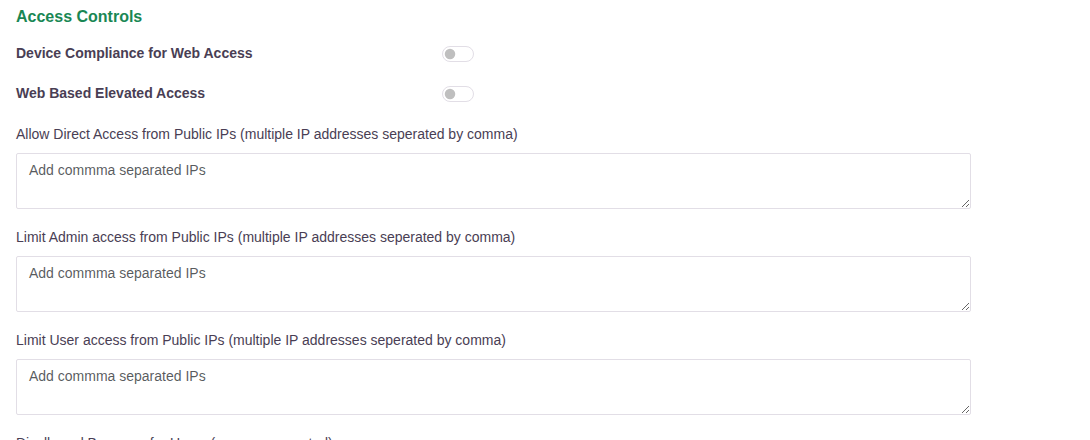
| Field | Effect |
|---|---|
| Limit Admin access from Public IPs | Administrators can reach the console only from the listed addresses |
| Limit User access from Public IPs | Users can connect only from the listed addresses |
Listing addresses here restricts everyone in the tenant. Leaving a field empty applies no restriction at that level. The same section also carries Allow Direct Access from Public IPs, which is a routing exception rather than a restriction.
Per user, group or organisation, on the authentication profile
Finer control is applied on the authentication profile itself, through Filter Auth Chain, where an address or range can be either allowed or blocked:
| Mode | Effect |
|---|---|
| Whitelist | The user can sign in from the listed addresses and from nowhere else |
| Blacklist | The user is refused from the listed addresses and allowed from anywhere else |
This is set per individual user, per user group, or for the whole organisation, so a restriction can be as narrow as one account. The typical use is to allow a group to connect only from the office network. The steps are in Restrict Access and Filter Auth Chain.
Because the filter sits on the authentication profile, an unauthorised address is refused at sign-in, before any application is reached.
The audit record
Every session carries the address it came from. The Session Log records, per session:

| Column | |
|---|---|
| Username | Who connected |
| Login Time, Logout Time | When the session began and ended |
| Public IP | The WAN address the user connected from |
| Country | Where that address is registered |
| ISA IP | The address assigned inside the tunnel |
| Upload / Download Data (Bytes) | Volume moved in the session |
| NAS IP | The gateway that served the session |
The log is filtered by Hour, Today, Last 24 Hours, Week, Month or a date range, searched by keyword, and exported with the CSV button.
Attempts that are refused are recorded too. An account and address that exceed the allowed number of failed attempts appear on the Blocked Users page with the address, the account, the time the block was applied and the time it lifts - see Account Lockout, Idle Timeout and Forced Logout. Administrator actions in the console, including changes to these restrictions, are recorded in the Access Logs and Event Log.
All of these logs can be streamed to an external SIEM for longer retention and correlation - see Reporting, Dashboards and Export.